

Your ISP's DNS might be the weakest link in your internet connection. Most users never think about it, but that default server can both slow down your browsing and expose your activity to your internet provider. The solution is to switch to a third-party DNS server. But which one? Cloudflare, Google DNS, Quad9, NextDNS, AdGuard, or something else? The honest answer is that no single DNS is best for everyone. Performance depends on your location, ISP peering, and even the time of day. The only reliable way to find the fastest DNS for your specific connection is to test them yourself — and you can do that in under 30 seconds without installing any software.
Why ISP DNS is a Problem
Every time you visit a website, your device sends a DNS query to translate the domain name (e.g., www.example.com) into an IP address. By default, your device uses the DNS server provided by your internet service provider. Unfortunately, ISP DNS servers are often slow, unreliable, and privacy-invasive. They can log every website you visit and sell that data to advertisers or other third parties. Even if your ISP doesn't monetize your browsing history, their DNS infrastructure may be outdated or poorly maintained, leading to higher latency and slower page loads.
Switching to a reputable third-party DNS server usually improves both speed and privacy. But the catch is that no two DNS providers perform equally on every network. A server that's blazing fast for your neighbor could be sluggish for you. That's because factors like geographical proximity, network peering arrangements, and server load all affect response times. For example, Cloudflare has many global nodes, but the one your traffic hits might be different from the one your friend's traffic hits.
The Simple Tool That Solved It for Me
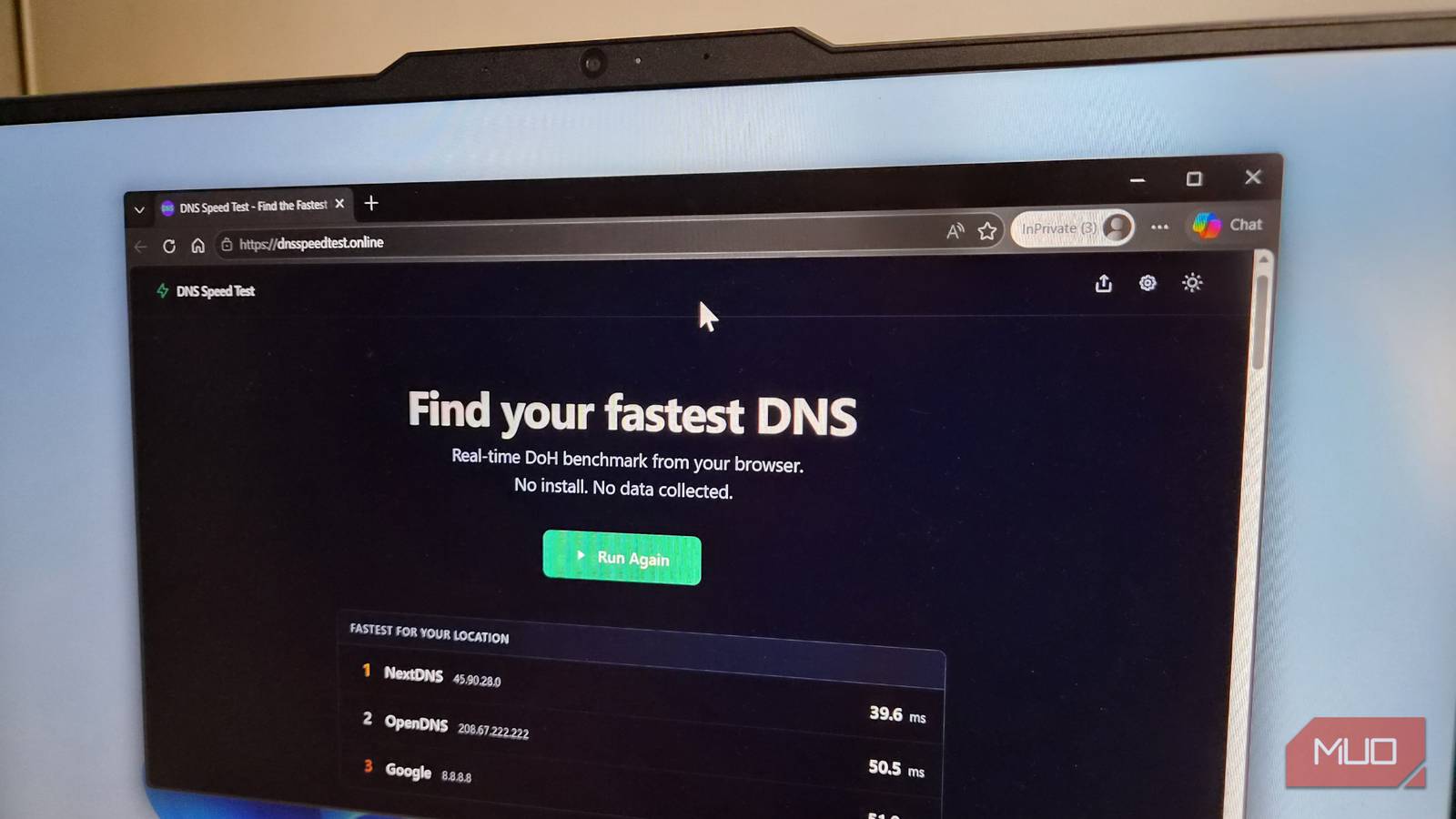
After struggling with inconsistent speeds and trying multiple DNS servers manually, I discovered a free browser-based tool called DNS Speed Test. It does exactly what the name suggests: it tests a list of popular DNS servers from your current network and shows you which ones perform best. The best part? No installation or configuration is required. Just open the website and click a button.
The tool works by sending several DNS queries to each server, including a warm-up phase to ensure results reflect real-world performance. In about 30 seconds, it compiles a report showing the top three DNS providers for your connection. You can also view detailed statistics such as minimum, maximum, median, and average response times for each server. This helps you choose not just the fastest DNS, but also the most consistent one — because reliability matters as much as raw speed.
How to Use DNS Speed Test Effectively
Using the tool is straightforward. Navigate to the website and click the start button. After a few seconds, you'll see results displayed by speed. But to get the most accurate picture, you should customize the test. By default, the tool queries popular caching-friendly domains like Google, YouTube, and ChatGPT, which many DNS providers cache to artificially improve their numbers. Instead, replace those with domains you actually visit daily — your work email server, news sites, streaming platforms, etc. This gives you a true measure of how each DNS will perform in your real usage.
Also, don't run the test just once. DNS performance can fluctuate during different times of the day due to network congestion. Run the test at various times — morning, afternoon, evening — over a couple of days, and note the median speeds. The server that consistently ranks near the top is the one you should choose.
Speed Isn't Everything: What Else to Consider
Once you've identified the fastest DNS providers for your network, you should evaluate their additional features. Many third-party DNS servers offer more than just resolution; they provide built-in security, privacy, or content filtering.
Security and Privacy Options
Quad9 is highly regarded for its security-first approach. It checks every DNS query against a threat intelligence feed, blocking known malicious domains associated with phishing, malware, and botnets. This adds a layer of protection even if you accidentally click a dangerous link. Quad9 also maintains a strict no-logs policy, so your browsing history isn't recorded.
Cloudflare's DNS (1.1.1.1) emphasizes privacy with a verified no-logs policy and high-speed performance. It's a solid all-rounder and one of the most widely used options. Google DNS (8.8.8.8) is also fast and reliable, but some users are uncomfortable with Google's data collection practices, even though they claim to anonymize logs.
Family-Friendly and Ad-Blocking DNS
AdGuard DNS adds ad and tracker blocking at the DNS level, which can speed up page loads by preventing ad scripts from loading. It works without any browser extension. NextDNS offers a free tier with limited queries and a detailed dashboard showing what's being blocked and which apps are trying to contact trackers. It's highly customizable, allowing you to create allowlists and blocklists.
CleanBrowsing is an excellent choice for families. It automatically blocks adult content and forces Google and YouTube to use SafeSearch, even on devices that can't install parental control software. This makes it easy to protect children across all devices on your home network.
Free vs. Paid
Most DNS providers mentioned (Cloudflare, Google, Quad9, AdGuard) are completely free. However, some like NextDNS have a free tier that caps queries per month — after exceeding that limit, DNS resolution stops until the next month or you upgrade to a paid plan. Always check the pricing and limitations before committing.
Why Testing on Your Own Network Matters
You might be tempted to look up online lists of 'fastest DNS servers' and pick the first one. But those lists are averaged across many users on varied networks. The performance on your specific connection could be completely different. For instance, one user might find that Cloudflare is 20% faster than Quad9, while another user on a different ISP might experience the opposite. This is due to the complex interplay of routing and peering.
By testing on your own network with a tool like DNS Speed Test, you get personalized, actionable data. It only takes 30 seconds, and you can repeat it whenever your internet behavior or network conditions change — for example, after moving to a new location, upgrading your internet plan, or switching ISPs.
Additional Steps After Choosing a DNS
Once you've selected the best DNS server from your test results, you need to apply it. You can change the DNS settings on your router to affect all connected devices, or change it individually on each device (Windows, macOS, Android, iOS). Changing it on the router is more convenient but might require access to router settings. Some routers also allow you to configure DNS per Wi-Fi network.
Remember that DNS change takes effect immediately, but you can revert if you notice any issues. Most reputable DNS providers have excellent uptime, but it's wise to keep a secondary DNS server configured as a fallback. The tool can show you the second and third best performers to use as alternatives.
Also, be aware that some DNS providers offer additional features like DNSSEC (domain verification) or encryption (DNS over HTTPS/TLS). If you value security, choose a provider that supports these protocols. Modern browsers and operating systems can be configured to use encrypted DNS, adding another layer of privacy.
By following this simple testing approach, you can stop relying on generic advice and start using a DNS that's truly optimized for your internet connection. The best part is, it takes less than half a minute and requires no technical expertise or software downloads.
Source:MakeUseOf News