

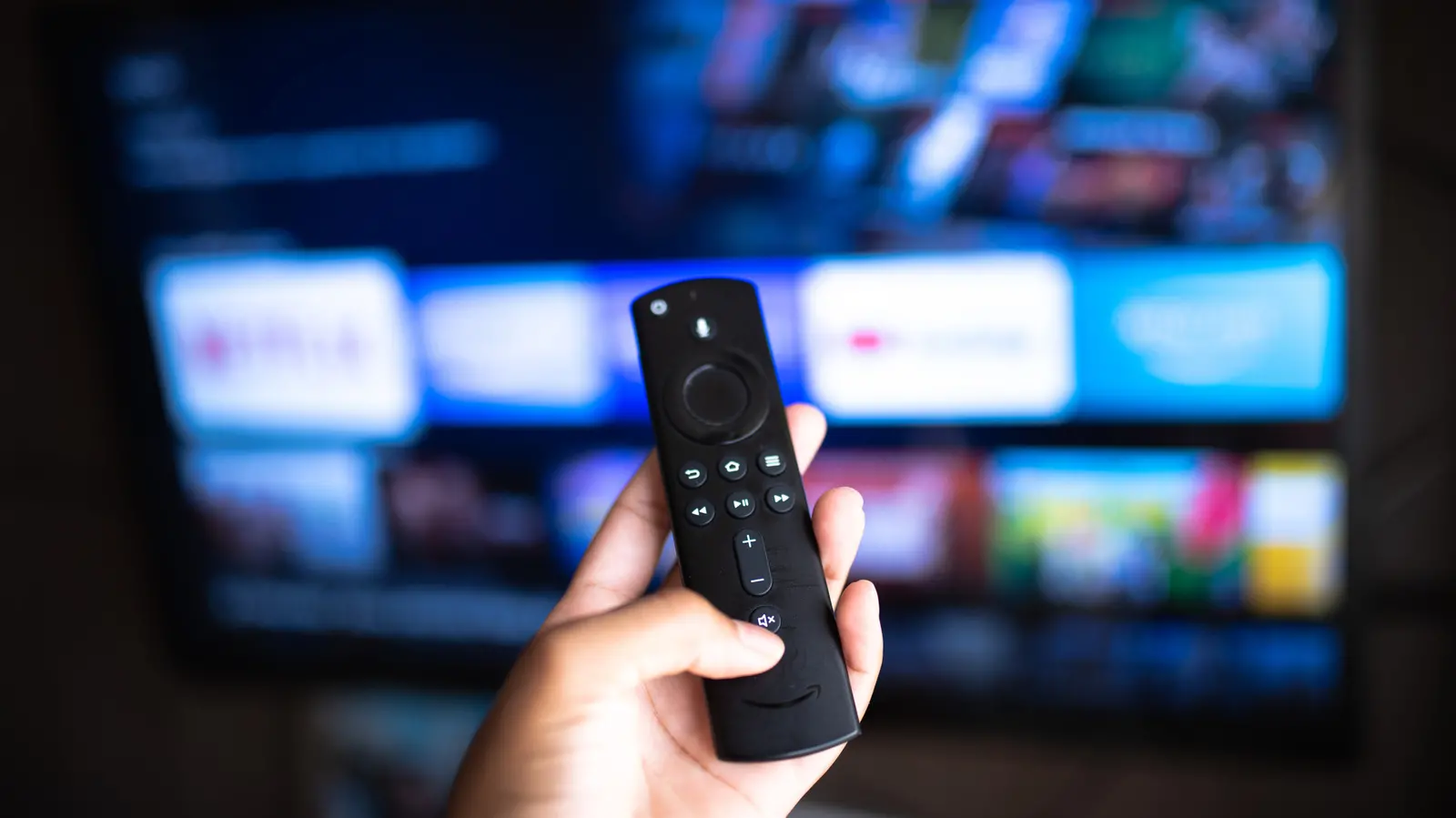
Smart TVs have become the centerpiece of modern living rooms, offering far more than just streaming services. From video calls to music streaming, these devices are packed with hidden capabilities. One of the most practical yet underutilized features is the ability to connect and view live feeds from your home security cameras, such as Ring devices. Whether you own a Ring doorbell or a Ring security camera, you can transform your television into a real-time surveillance monitor with just a few steps.
Before diving into the setup process, it's important to understand the requirements. Not all smart TVs are compatible with Ring cameras. The two primary ecosystems that support this integration are Amazon Fire TV and Samsung SmartThings. Fire TV includes built-in Amazon Fire TV Edition televisions as well as Fire TV Stick devices that plug into any TV with an HDMI port. Samsung SmartThings is available on many recent Samsung smart TVs. If your TV lacks native support, a low-cost Fire TV Stick (starting around $30) can add Ring compatibility and many other smart features.
Why Connect Your Ring Camera to a Smart TV?
Viewing your Ring camera on a large screen offers several advantages. Instead of glancing at a small smartphone screen, you can see full details of your front porch, backyard, or driveway in high definition. This is particularly useful when monitoring packages, welcoming guests, or checking for suspicious activity. The integration also allows you to multitask: keep an eye on the door while watching a show, or use your TV as a baby monitor by pointing a Ring camera at the nursery. Additionally, voice control via Alexa or Bixby (on Samsung TVs) makes it hands-free: just ask to see a specific camera.
The security industry has seen rapid growth in smart home integrations. According to a 2025 report by Parks Associates, over 40% of U.S. households with broadband own at least one smart security device. Ring, owned by Amazon, dominates the video doorbell market with a share of over 30%. By linking Ring to your TV, you join this trend of creating a cohesive smart home ecosystem where devices communicate seamlessly.
What You Need: Compatibility and Prerequisites
Before starting, ensure you have the following:
- A Ring device (video doorbell, security camera, or floodlight cam) that is already set up and connected to your Wi-Fi network. The Ring app should be installed on your smartphone and your Ring account should be active.
- A compatible smart TV: an Amazon Fire TV (any model with Fire OS) or a Samsung TV (2017 or newer with SmartThings built-in). Alternatively, a Fire TV Stick or Fire TV Edition device plugged into any TV with an HDMI port.
- A stable internet connection. Both the Ring device and the TV need to be online.
- The Amazon Alexa app (for Fire TV) or the SmartThings app (for Samsung TV) installed on your smartphone.
- Your Amazon and Ring accounts (or Samsung and Ring accounts) must be linked.
If you are using a Fire TV Stick, simply plug it into an available HDMI port and ensure it is powered. The Fire TV Stick provides the same functionality as a built-in Fire TV, including Alexa voice control.
Method 1: Connecting Ring Camera to an Amazon Fire TV
This is the most common method because Amazon owns Ring and Alexa integration is straightforward. Follow these steps:
Step 1: Set Up Your Ring Device
If you haven't already, install your Ring camera according to the manufacturer's instructions. The Ring app will guide you through connecting to Wi-Fi and naming your camera (e.g., "Front Door"). Make sure the app shows your camera as online.
Step 2: Install the Alexa App
On your smartphone, download and open the Amazon Alexa app. Sign in with the same Amazon account that you use for your Fire TV. If you have multiple Amazon accounts, ensure consistency.
Step 3: Enable the Ring Skill
In the Alexa app, tap the "More" icon (three horizontal lines) at the bottom right. Select "Skills & Games". In the search bar, type "Ring". Find the official Ring skill and tap "Enable to Use". You will be prompted to sign in to your Ring account. Once you enter your credentials, the accounts are linked. This allows Alexa to access your Ring cameras.
Step 4: Discover Devices
After linking, the skill may automatically discover your Ring cameras. If not, you can say, "Alexa, discover devices," or go to the Alexa app's "Devices" tab and tap the "+" icon to add a device. Select "Camera" and then "Ring". The app will scan and list your cameras.
Step 5: View on Your Fire TV
Now, grab your Fire TV remote. Press and hold the Alexa button (the one with the microphone icon). Say, "Show me the front door camera" (using the name you gave your camera). Alternatively, you can say, "Alexa, show [camera name]." The live feed will appear on your TV screen. You can switch cameras by asking again. To stop viewing, say "Alexa, hide that" or press the back button.
If you have multiple Ring devices, you can create routines. For example, a routine can automatically display the doorbell camera when someone rings the bell. This requires setting up an Alexa routine: go to the Alexa app's "Routines" tab, create a new routine triggered by "Ring Doorbell Press" and action "Camera" to show the feed on your Fire TV.
Method 2: Connecting Ring Camera to a Samsung Smart TV
Samsung SmartThings offers a similar integration, though it uses SmartThings iCloud sync rather than Alexa. Here's how:
Step 1: Install SmartThings App
On your smartphone, download the SmartThings app from the Google Play Store or Apple App Store. Sign in with your Samsung account. If you don't have one, create it.
Step 2: Add Your Ring Camera
In the SmartThings app, tap the "+" icon (Add Device). Select "Device" from the list. You can either scan for nearby devices or choose "Add Manually". Under "Brand", select "Ring". The app will ask for your Ring account credentials. Sign in to link the accounts.
Step 3: Authorize in Ring App
Open the Ring app on your phone. Go to the Settings menu (gear icon). Look for "Authorized Connections" or "Linked Devices". You should see the SmartThings app listed. Tap to authorize if necessary. This step ensures the two platforms can communicate.
Step 4: View on Samsung TV
On your Samsung TV remote, press the "Smart Hub" or "Home" button. Navigate to the SmartThings app. Open it and you should see your Ring camera listed as a device. Select it to start viewing the live feed. You can also use Bixby voice commands: say "Hi Bixby, show the front door." Note: Bixby integration may require setting up voice activation.
Samsung also supports other third-party cameras through SmartThings, so if you have multiple brands, you can centralize them. However, Ring is one of the most popular.
Troubleshooting Common Issues
Even with clear steps, users may encounter problems. Here are typical issues and solutions:
"Camera not found" or "Device offline"
Ensure your Ring camera is connected to Wi-Fi and has adequate signal. Restart the Ring device by removing its battery (if wireless) or using the reset button. Also check that your TV and phone are on the same Wi-Fi network.
Alexa says "I can't find that camera"
Verify that the Ring skill is enabled and accounts are linked. Re-link the skill by disabling and re-enabling it in the Alexa app. Also confirm that the camera name you're using matches exactly (including spaces and capitalization). You can edit the camera name in the Ring app.
Feed is slow or lagging
This can be due to poor internet bandwidth. Ring cameras stream in HD, which requires at least 2 Mbps upload speed per camera. If your network is congested, lower the video quality in the Ring app settings (e.g., from 1080p to 720p). Also, place your Wi-Fi router closer to the camera or use a mesh network.
Samsung SmartThings doesn't show the camera
Make sure you've authorized the connection in the Ring app. Sometimes the authorization expires; re-authorize. Also update the SmartThings app and the TV firmware to the latest versions.
No audio or two-way talk
Two-way audio may not be supported via TV speakers. Some TVs allow audio pass-through, but often you'll need to use the Ring app on your phone for talking. Check your TV's audio settings.
Alternative Methods and Advanced Tips
If you don't own a Fire TV or Samsung TV, there are other ways to view Ring on a large screen:
- Google Chromecast: Cast your phone screen to the TV via Chromecast while the Ring app is open. This mirrors the feed but may have latency.
- Apple TV: Use AirPlay to mirror your iPhone or iPad with the Ring app. Again, not a dedicated integration but works.
- Smart TVs with IFTTT: Some TVs support IFTTT (If This Then That) applets to trigger camera feeds, but this is less reliable.
- PC or Mac: Connect your computer to the TV via HDMI and use a web browser to access Ring's web dashboard (ring.com). This method works on any TV with an HDMI input.
Advanced users can integrate Ring with home automation hubs like Hubitat or Home Assistant. These platforms allow creating custom dashboards that display multiple cameras on a single TV screen using a Raspberry Pi or an old Android TV box. However, these require technical know-how.
Expanding Your Smart Home Ecosystem
Connecting Ring to your TV is just one piece of a larger puzzle. Many users pair Ring with other Alexa-compatible devices like Echo Show smart displays, which can also show camera feeds. Smart lights, locks, and thermostats can be controlled alongside cameras. For instance, you can create a routine where when the Ring doorbell detects motion, your TV turns on and shows the feed while your porch lights also turn on. This level of automation enhances security and convenience.
The trend toward "ambient computing" means devices like TVs are becoming central hubs. With the right setup, you can control your entire smart home from your couch. Voice assistants like Alexa and Bixby now support multi-room audio, intercom, and even emergency alerts. Adding your Ring camera feed to the mix makes your TV a proactive security tool rather than a passive entertainment device.
It's worth noting that privacy considerations should not be overlooked. When your TV camera (if it has one) or the Ring feed is active, ensure that you are not inadvertently recording private areas. Ring devices should be positioned only where there is no expectation of privacy (e.g., overlooking a neighbor's window). Also, manage your account passwords and enable two-factor authentication to prevent unauthorized access.
Finally, keep your devices updated. Ring regularly releases firmware updates that improve performance and security. Similarly, TV software updates may add new integration features. Check for updates periodically in your device settings.
With these instructions and insights, you can unlock the hidden security camera feature of your smart TV. Whether you're a tech enthusiast or a casual user, the ability to see who's at the door without pulling out your phone is a small convenience that makes a big difference in daily life.
Source:SlashGear News