

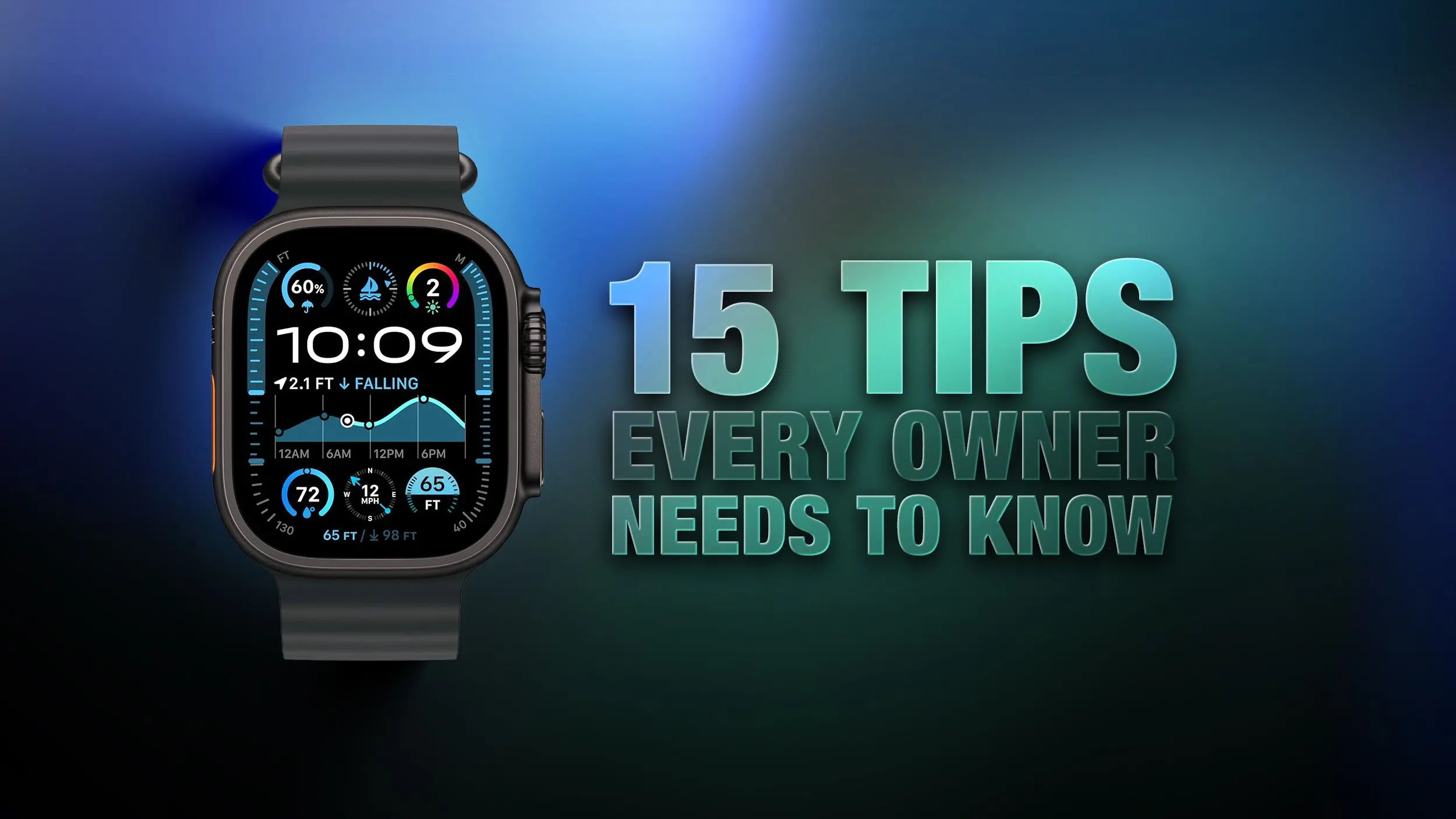
The Apple Watch has come a long way since its debut in 2015. Now in its eleventh generation, the device is more powerful and feature-rich than ever. Yet many owners never discover the full potential of their wrist-worn companion. Whether you have a Series 9, Ultra 2, or the latest Series 11, these 15 tips will help you work faster, stay organized, and get the most out of your Apple Watch.
Bounce Between Two Apps
One of the most underutilized gestures on Apple Watch is the double-press of the Digital Crown. This action brings up the app switcher — a deck of all currently open apps. You can scroll through them by turning the crown. Tapping any app screen switches to it instantly. If you want to close an app, swipe left on its card and tap the red X. This feature is especially useful when you need to quickly refer back to a previous app, like Messages after checking a notification, without fumbling through the home screen.
Switch App Views
The default honeycomb grid of app icons can feel chaotic, especially as you install more apps. Fortunately, Apple offers a cleaner alternative: List View. To enable it, open the Watch app on your iPhone, go to App View, and select List View. After that, pressing the Digital Crown shows a simple alphabetical list of your apps. This reduces clutter and makes finding apps faster — just scroll or use the crown to zip through the list.
Rearrange Apps
Even in grid view, you can put your most-used apps front and center. Press and hold any app icon until they all jiggle, then drag it to your desired position. Alternatively, use the Watch app on iPhone: go to App View > Arrangement and drag apps around on the larger screen. This is much easier for precise placement. Group similar apps together, such as all health and fitness apps near the center, so you can access them with a single tap.
Ping Your iPhone
Losing your iPhone in the sofa cushions is a daily struggle for many. Your Apple Watch can help: open Control Center by pressing the Side button, then tap the phone icon (it looks like a ringing iPhone). Your iPhone will emit a loud ping. If you press and hold that icon, the iPhone's camera flash will blink as well, making it easier to spot under a pillow or behind furniture. This works even if your iPhone is on silent mode — the sound and flash override the mute setting.
Skip the Countdown
When you start a workout, a three-second countdown appears, presumably to give you time to get ready. But if you're already poised to run, that delay can be annoying. Simply tap the screen during the countdown, and your workout begins immediately. If you find yourself doing this every time, go to Settings > Workout on your watch and enable Precision Start. This setting removes the countdown entirely, letting you start workouts instantly with a single tap.
Customize Vibration Strength
Haptic feedback on Apple Watch is subtle by default — sometimes too subtle. If you miss notifications, head to Settings > Sounds & Haptics and change Haptic Strength from Default to Prominent. This adds an extra pre-alert tap pattern that is harder to ignore. It's a lifesaver in noisy environments or when you're moving around. The tap pattern is slightly longer and more noticeable, ensuring you never miss an important message or reminder.
Perform Precision Timing
The Chronograph Pro watch face turns your Apple Watch into a real chronograph stopwatch. Tap the outer bezel ring to switch between different time scales: 60, 30, 6, or 3 seconds. You can also select the tachymeter scale, which measures speed based on time over a known distance. This is great for runners, pilots, or anyone who needs precise timing without pulling out a dedicated stopwatch. The analog display makes it look classic and professional.
Jump to the Top
Scrolling through long lists on a small screen can be tedious. If you've scrolled way down in an app like Mail or Weather, just tap the time display in the top-left corner of the screen. This instantly scrolls the list back to the top. It works in most Apple Watch apps and saves you from endless crown scrolling. It's a small but incredibly efficient gesture that many users discover only by accident.
Remove Apps
Over time, your Apple Watch can accumulate apps you never use. To clean them up, press and hold on the home screen (in either List or Grid View) until the icons jiggle. Tap the small x on any app icon to delete it. This works for most system apps (like Stocks or Compass) and all third-party apps. Removing unused apps frees up storage and reduces clutter, making your watch faster and more responsive.
Customize Control Center
Control Center (accessed via the Side button) offers quick toggles for Wi-Fi, battery, Do Not Disturb, and more. But you can add extra controls: tap Edit at the bottom of Control Center, then tap the + icon in the top-left. You'll see options like New Note, Lights (for controlling HomeKit lights), and even third-party controls from apps you have installed. Adding a flashlight shortcut, for instance, can be handy when walking in the dark. Tailor Control Center to your daily needs — it's one of the most personalizable parts of the watch.
Speak the Time Out Loud
One of the hidden fun features is using a character watch face to speak the time. If you're using Mickey or Minnie Mouse, tap the character and they'll announce the current time. Make sure sound is enabled on your watch. Alternatively, you can use a two-finger long-press on any watch face to have Siri read the time aloud. This is particularly useful for visually impaired users or when you don't want to look at your wrist. The Mickey Mouse voice is a nostalgic touch that brings a smile.
Customize Smart Replies
When replying to messages on your Apple Watch, you can use Smart Replies — preset short responses like “Yes,” “No,” “Sounds good,” or “On my way.” You can customize these presets: open the Watch app on iPhone, go to Messages > Default Replies, and tap Edit to add, remove, or reorder replies. This way, your most common responses are always at your fingertips. It's perfect for quick interactions while driving or in meetings.
Pause Activity Rings
If you're ill or injured but don't want to break your streak of closing rings, you can temporarily pause them. In the Activity app on your watch, tap your rings (the three circles), scroll down, and select Pause. You can pause for a day or set a future end date up to 90 days ahead. This is a compassionate design choice by Apple — acknowledging that life happens, and you shouldn't lose progress due to circumstances beyond your control.
Create a Note
With watchOS 26, Apple introduced a native Notes app on the watch. You can't edit existing notes, but you can create new ones. Tap the compose button (bottom-right corner) and dictate your note via speech. Because Notes syncs through iCloud, you can later refine or reorganize the note on your iPhone, iPad, or Mac. This is excellent for capturing quick ideas, shopping lists, or reminders without pulling out your phone.
Mute and Dismiss Alerts
The quick wrist flip gesture — covering the watch face with your palm — has been on Apple Watch for a few generations. It immediately clears the current screen, mutes incoming calls, stops timers, and dismisses notifications. The gesture is on by default on Apple Watch SE (3rd generation), Series 9, Ultra 2, and later models. It's a discreet way to silence your watch in meetings or theaters without fumbling for buttons. The motion is intuitive and fast, making it one of the most elegant features of the latest models.
These 15 tips only scratch the surface of what your Apple Watch can do. From app management to accessibility, each feature is designed to save you time and make your daily routine smoother. Experiment with them today, and you'll soon wonder how you managed without them. The watch's capabilities continue to grow with each software update, so keep exploring and customizing to match your lifestyle.
Source:MacRumors News