

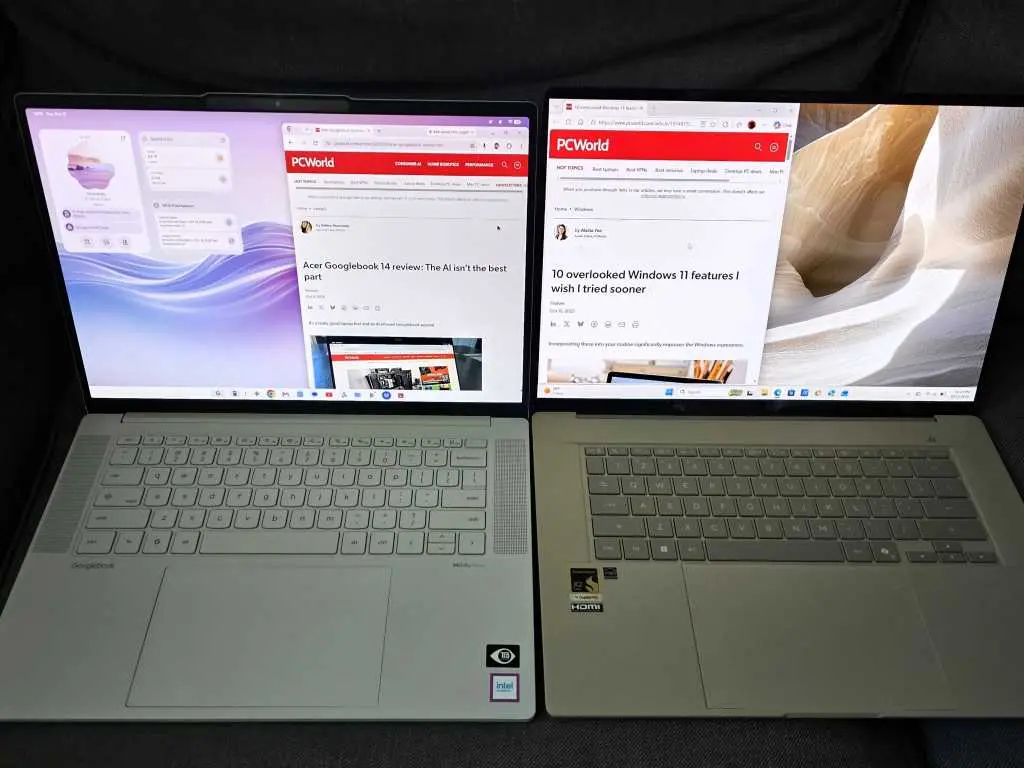
Google's first Googlebook laptops have arrived with a clear pitch: bring AI-powered productivity into the Google ecosystem without asking users to abandon the web-first habits they already know. The machines run Aluminium OS, the next step in the evolution of Chromebook-style devices, and they lean heavily on Gemini, desktop widgets, screen-aware assistance and voice dictation. The question is whether those features add up to a better working laptop than a familiar Windows 11 machine. After spending time with a Lenovo Googlebook 15, the answer is mixed: the AI ideas are often clever, but the overall package still leaves Windows with the advantage.
Key facts at a glance
- Googlebooks run Aluminium OS and prioritize Gemini-powered widgets, Magic Pointer screen recognition and Rambler dictation.
- A Googlebook requires an Android phone, specifically Android 17, while Windows Phone Link can connect to Android 10 and later.
- On a Lenovo Googlebook 15, the keyboard felt poor, Outlook ran as an Android app with setup and login problems, and 16GB of memory still produced choppy performance.
- Desktop widgets and Rambler dictation scored well, while Magic Pointer was slow and Copilot Vision struggled to identify screen content.
- Despite smart individual features, the tested Windows laptop remained the preferred daily machine because of better hardware, broader app compatibility and more predictable navigation.
AI features lead the pitch
Google's strategy with the Googlebook is not simply to shrink a Chromebook into a new shell. The company is trying to make AI the first layer of the operating system rather than a bolted-on assistant. That approach shows up most clearly in the widget system. On Windows 11, widgets are easy to ignore. They sit inside a panel that many users never open, and they often feel like a distraction from the desktop rather than a tool built into it. On the Googlebook, widgets live directly on the desktop. Users can choose from a menu of pre-designed widgets or create their own, arranging information where it is immediately visible.
The more ambitious idea is that Gemini can build widgets on request. Instead of hunting through options, a user can describe the widget they want and let the AI assemble it. The results are not yet reliable. A request for an up-to-the-minute widget tracking the MLB playoffs produced only scores, not the fuller experience implied by the prompt. A separate request for a widget highlighting priority email failed because direct email access was not built in. Those are meaningful limits, but they also show where the platform is headed. Microsoft has promised similar capabilities through Copilot Code, though that feature has not yet been tested at length in the same way. Google's advantage is that its version feels simpler and more closely tied to the desktop itself.
Magic Pointer versus Copilot Vision
Screen recognition is another area where the two platforms are converging. Magic Pointer and Copilot Vision both try to understand what is visible on the display and explain or act on it. Magic Pointer is launched by wiggling the mouse pointer, a small gesture that is easier to remember than another keyboard shortcut. It opens a context-aware Gemini session that can identify what the pointer is aimed at and answer questions about it. Copilot Vision takes a different approach. It sits inside Copilot and, once enabled, continuously watches what the user is seeing.
Both systems have flaws. Copilot Vision was relatively poor at identifying what it could see. Magic Pointer could be slow: in one test it took close to a full minute using its own Flash-Lite engine. That is too long for a feature meant to feel like a quick assist. Even so, the interaction model is promising. Wiggling a mouse to summon help is more natural than memorizing a shortcut, and tying the assistant to the precise object under the cursor gives the AI a clear target. The execution needs to become faster and more dependable before it becomes a daily habit.
Rambler makes dictation feel natural
The clearest win for Google is Rambler, its voice dictation system. Windows 11 has dictation across the platform and a dedicated dictation function in Word, but the Windows version tends to be literal. It transcribes words, yet it does not do much to clean up the way people actually speak. Rambler is more forgiving. It accommodates verbal fry, the ums, ers and you knows that fill natural speech, and smooths them out. It also inserts punctuation, breaks sentences and applies proper capitalization. In practice, that makes dictation feel less like transcription and more like writing.
One reason Rambler works well is the way it is invoked. Google has repurposed the Caps Lock key as a shortcut for small utilities, including dictation. Most people do not use Caps Lock for its original purpose, so turning it into a multi-function key is a sensible trade. The shortcut is not universal, however. It works in some contexts, such as Gmail, but not in others. That inconsistency is a problem, because a shortcut only becomes useful when users can rely on it everywhere. Still, when Rambler is active, it shows what AI can do when it is applied to a narrow, practical task rather than a broad promise.
The Android phone requirement creates friction
A major part of the productivity equation is the phone. Googlebooks are designed to work closely with an Android phone, but the requirement is stricter than expected: the phone must run Android 17. Google has recently allowed some rival Samsung phones to connect, but a fully updated Samsung Galaxy S23 can still run Android 16. That leaves a supported, current phone unable to pair with the Googlebook. Windows, by contrast, has a lower barrier. Phone Link, once called Your Phone, requires only Android 10 to connect a phone to a PC. That gives Windows a practical advantage for people who are not carrying the newest Android release.
Phone Link allows users to transfer photos from the phone to the PC, place calls and send messages over Bluetooth, and even run Android phone apps inside PC windows. The Googlebook equivalent, sometimes described as Better Together, promises similar capabilities. From early use, Phone Link is a surprising equal in most respects except app streaming. Windows can be fussy about which phones support app streaming, while Googlebooks promise that all compatible phones will support the feature, provided they meet the Android 17 requirement. That caveat is difficult to ignore. A platform that depends on a phone should not leave current, supported devices on the wrong side of the line.
Apps expose the gap between promise and polish
The phone requirement is not the only source of friction. Android apps on the Googlebook can feel like a compromise. Outlook works fine on a Windows PC, but on the Googlebook it runs as an Android app. Setting up a work account took far too long, and the app demanded re-authentication every time the user logged on. It then crashed. That is not the experience a productivity machine should deliver. Windows handles the same task more predictably: the operating system is secured with Windows Hello or a password, and Outlook stays open and ready to use.
The Lenovo Googlebook 15 does include face and fingerprint logins in front of an optional PIN, which is a good hardware feature. The problem is that the software experience around apps does not match that convenience. A laptop that asks users to prove who they are every time they open email is adding friction to the most basic part of the workday. Windows is not perfect, but it has had years to smooth out account security, app persistence and the handoff between the operating system and desktop software. The Googlebook's Android app layer is not yet at that level.
Hardware and everyday speed
The hardware was not expected to be the star of the Googlebook show, and that is fortunate. The Lenovo Googlebook 15 has an uncharacteristically poor keyboard. That matters because a laptop is still a typing machine first. A better display or a thinner chassis cannot make up for a keyboard that feels unpleasant under the fingers. A Windows demo machine using a Panther Lake chip had a far superior keyboard, which immediately made it the more attractive daily work tool. The Googlebook does include face and fingerprint logins, and its hardware otherwise drew few complaints, but the keyboard is a basic point of contact that cannot be treated as an afterthought.
Performance was also uneven. Even with 16GB of memory, the Googlebook felt somewhat choppy and laggy. In a normal working setup with two displays and the laptop sitting beneath them, running a few apps and Chrome tabs produced more stutter than expected. That is not a catastrophic failure, but it is a warning. Productivity laptops are judged by how smoothly they handle the ordinary mix of browser tabs, chat apps, email and documents. Battery life was difficult to track, with no great way to see how long the machine would last. The hope that a custom ROM might help is not a reassuring answer for a mainstream product.
Software friction and discoverability
Windows is full of different ways to perform the same task because it meets users halfway. That can make the interface feel crowded, but it also means people can usually find a path to what they need. The Googlebook often feels less forgiving. Restarting the machine was not obvious until the power button did the job. The Caps Lock shortcut worked only in certain scenarios, such as Gmail, but not in others. Right-clicking the desktop produced absolutely nothing, which is a small moment of confusion that undermines confidence
Source:PCWorld News